





























Stirling-PDF is a browser-based PDF toolbox that runs on your server. The Impreza catalog recipe processes documents on that server and requires a login. Document storage, telemetry and fetching pages for URL-to-PDF conversion are disabled in the catalog configuration.
What you need
- An eligible Impreza VPS or a compatible Linux server connected to My Apps, with the Impreza Agent online.
- The catalog lists 1 CPU core, 1,536 MB of RAM and 6 GB of disk for this app. Check the current requirements and free resources in My Apps. Allow extra capacity for large files, batch conversion and OCR.
- An HTTPS hostname for the app. Choose one offered by My Apps or configure a hostname you control. For your own domain, follow the custom-hostname checklist. The Stirling-PDF catalog recipe uses HTTPS and has no Tor mirror option.
Install Stirling-PDF from My Apps
Select the app and server
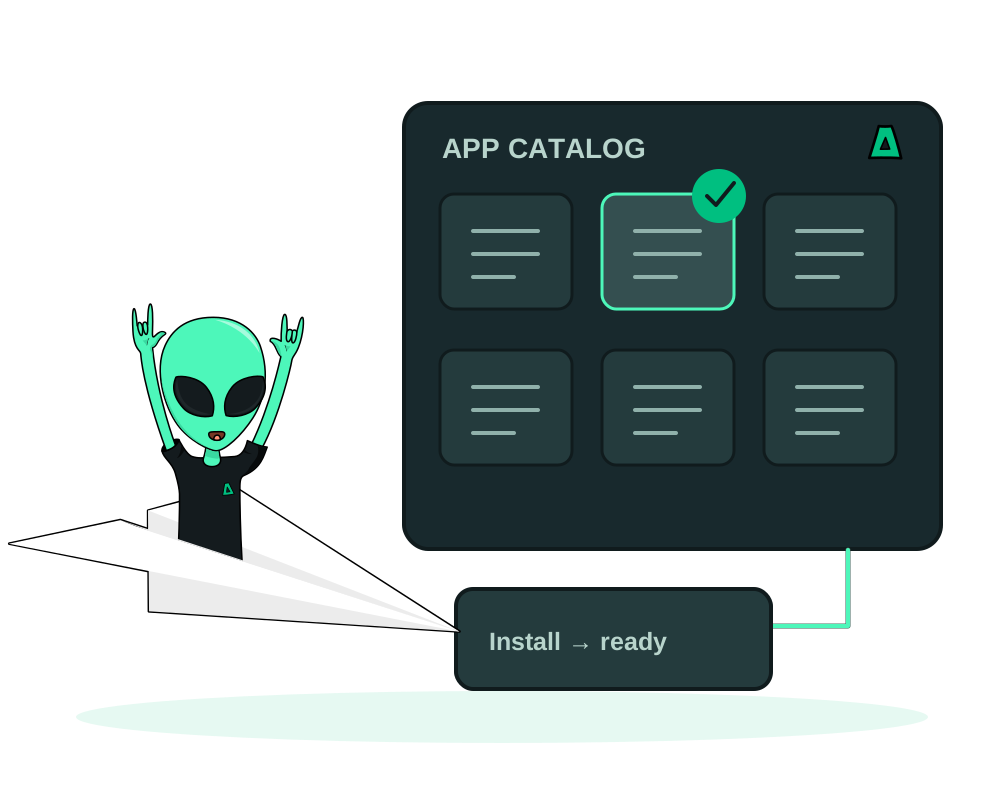
Open My Apps, find Stirling-PDF in the catalog and choose your connected server. Review the app requirements and select its hostname. Follow the catalog deployment guide if this is your first install.
Confirm and wait for the app
Review the deployment settings and confirm. Follow the deployment status in My Apps. Once the web address is ready, open it over HTTPS and check that the sign-in screen loads.
Sign in with the generated owner account
In My Apps, open the deployment and find Login details. Save the generated credentials privately and sign in to Stirling-PDF. Keep the app password separate from your Impreza account password.
Run a first PDF job
Start with a non-sensitive sample. Use Merge to combine two small PDFs or OCR to make a scanned page searchable. Download the result and check the pages and text before relying on it. Keep the original files in storage you control.
Handle private documents
Use the HTTPS address and limit access to the people who need the app. Keep the original and processed files in storage you manage. Keep Stirling-PDF and its host up to date, and review application backup coverage before relying on recovery for app data or settings.
Deploy with an AI assistant
If you prefer to work in chat, connect your assistant with OAuth. On a connection with deployment access, ask it to find Stirling-PDF in the catalog and prepare a deployment on the server you choose. Review the server, hostname and requested operation before approving it. Open the app directly to sign in and work with your PDFs.
Read the Stirling-PDF catalog reference for the recipe’s configuration and privacy controls.