

































Choose the connection supported by your AI client: the Impreza Host plugin in ChatGPT, the Impreza MCP community integration in Claude, a custom remote MCP connector or the local package. This guide owns the remote OAuth connection steps. Available tools and authorization depend on the integration you select.
Start from ChatGPT or Claude
In ChatGPT, open the Impreza Host plugin and follow its account connection. In the Claude application, look for Impreza MCP, identified as a community integration. Claude’s application integration, the Claude Code plugin and the local MCP package are separate installation paths. The published Claude Code plugin 0.1.3 includes a guided start-from-nothing workflow that asks whether you already have a server. Follow the plugin’s public instructions for that path; installing an npm update alone does not update the plugin.
Review the available actions and consent for the integration you use; the two entries need not expose the same catalog. Start with a read-only question such as: “List my connected servers and apps. Tell me what needs attention without changing anything.” Buying or resizing through an external-checkout integration takes you to the supported portal review instead of authorizing a charge in chat.
If your client offers custom remote MCP connectors, use the four-step connection below. The client needs its own Tor support to reach an onion endpoint; finding Impreza inside ChatGPT or Claude does not establish that their requests use Tor.
Why OAuth is the better default
- Nothing to install. One URL added as a connector, and the client registers itself
- No API key or secret to copy, store or rotate, and no IP whitelist to maintain
- Scoped. You approve read, deploy or manage; destructive and financial actions are opt-in
- Revocable. Cut a connection off at any time from your clientarea
Connect in four steps
Add the connector
In an AI client that supports remote MCP connectors, add this as a custom connector:
https://mcp.imprezahost.com/mcp
Authorize
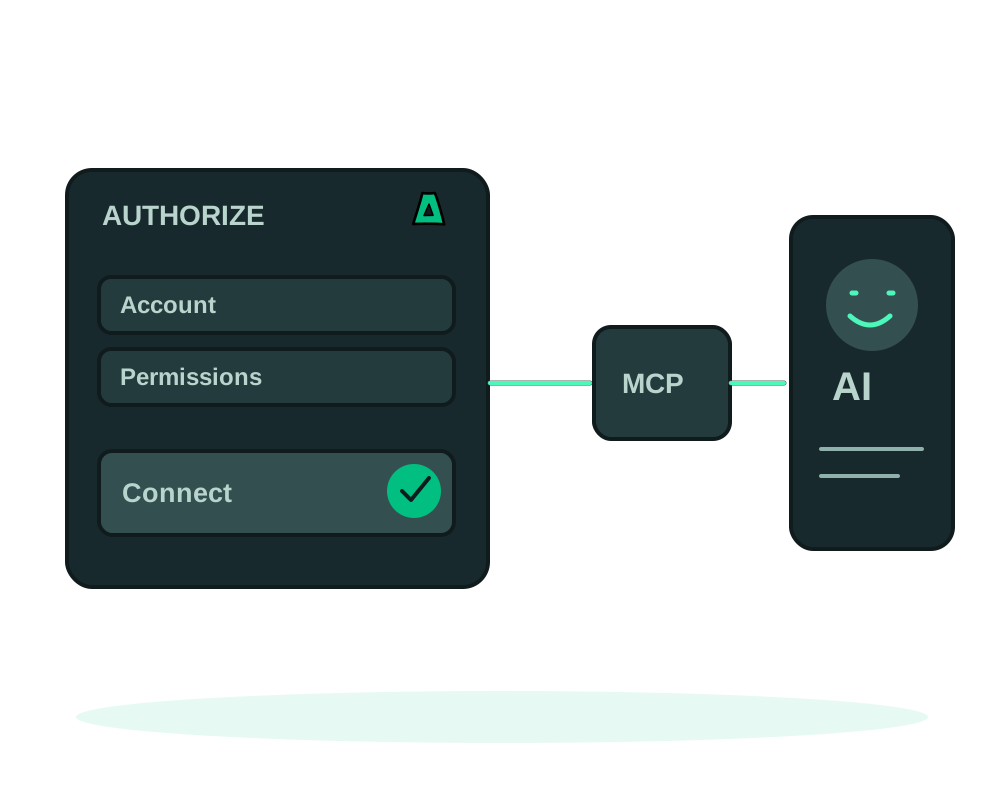
Click Authorize. You sign in to your Impreza clientarea and land on a consent screen. The sign-in happens on Impreza. The AI client receives an authorized access token for the granted scopes; you do not need to paste your Impreza password into the client.
Grant only the scopes you need
Review the permission checkboxes before approving. Read and Deploy are selected by default; Manage is not. For read-only access, uncheck Deploy even if the authorization link requests scope=read. The selected permissions determine the grant. Check the app name and redirect target as well.
Work from the chat
Start by reading your connected services and the operations advertised for your connection. Supported app, DNS, VPS and account actions depend on the integration, your services and credential permissions. Covered changes can require a separate confirmation or portal checkout. Connecting MCP does not install the server Agent; app operations need an eligible server with its Agent online.
Keep your connection through session renewal
A compatible OAuth client can renew an authorized session without asking you to connect again each time. On Impreza, a normal refresh keeps the same connection identity and its existing permissions. Your scopes, resource restrictions and other access limits still apply; renewal does not grant broader access or restore a connection you revoked.
Explicitly authorizing the same client again replaces and revokes its previous credential for your account. Review the consent screen and selected permissions again. After reconnecting, start with a read-only status check and review any pending change before asking the assistant to continue. You can manage the connection in Impreza API → Connected Apps; see the OAuth reference for the connection steps.
Review the permission required by each tool before allowing destructive or financial operations. A financial manage grant can create a top-up invoice or use account credit for supported actions. If the assistant only needs to inspect services, grant read and leave Deploy unchecked. Enable broader permissions deliberately for the task.
Every connected client is listed in your clientarea under Impreza API, in Connected Apps. Revoke anything you no longer use, and revoke immediately if a machine running an AI client is lost or compromised. Revocation removes the grant; it does not undo completed changes or guarantee cancellation of a job already dispatched.
The remote connector cannot upload a project folder from your machine. If you want to deploy the code sitting in your working directory, install the local impreza-mcp server for Claude Code, Cursor, Codex CLI, Continue or Zed. Both methods work side by side. If you go that route, pair with a code instead of pasting a secret: the key is stored with restrictive permissions and never printed.
Use visual panels when your client supports them
The hosted connector and local impreza-mcp 0.55.1 include three MCP Apps panels for compatible AI clients:
- A VPS card to inspect the latest requested reading and review supported power controls. See manage your VPS from chat.
- A deploy wizard to choose a supported app, an eligible server, domain settings and an optional Tor mirror. See deploy from a visual panel.
- A payment card with QR for on-chain BTC or XMR top-ups. See the payment-card steps.
Panel rendering depends on the client supporting the MCP Apps extension; an MCP connection alone does not guarantee a visual interface. Keep using text results or My Apps if panels are unavailable. The cards keep the existing account permissions and confirmations, and the server card refreshes on request rather than monitoring continuously.
Check the catalog offered by your connection
The published local impreza-mcp 0.55.1 contains 219 named tools and 6 prompts, checked for that release on 21 October 2026. This is the local package catalog before account filtering, not a universal total for every hosted connection. Inspect your own tools/list; the integration, services, profile and credential restrictions determine what is visible. Consult the dated tool-count reference for hosted measurements. Each action still needs its required permissions.
impreza_add_server, available since local 0.53.0, prepares the connection of a server you already administer. It also retains exact decimal-string top-up amounts and the checks on IDs placed in API request paths. Use IDs returned by the platform; malformed IDs are refused before the request is sent. This validation does not grant access to another account’s resources. For financial input formats and payment steps, read top up your balance in crypto.
Read the published local MCP notes and the connection and tool-count reference. Updating your local MCP package, authorizing OAuth and updating the server Agent are separate actions. Hosted tools can evolve independently from the local package.
Start with a server you already have
You do not need to buy another VPS to try supported app operations. With an authenticated connection and deploy permission, impreza_add_server returns an installation command for a compatible external Linux server. You authorize running it with administrator access, then wait for the Agent to appear online. The tool does not move existing apps or install itself merely because you connected MCP.
The first external server is free without a plan or account balance; your existing host and any storage or other services keep their own costs. Without a paid service, a platform-domain hostname is unavailable: use a domain you own or a compatible onion-only app. See connect your own server for token handling, account limits and verification. Use impreza_install_agent for the separate managed Impreza VPS installation path.
Connect through Tor with a compatible client
A compatible client can use Impreza’s hosted onion MCP endpoint:
http://mcp.imprezareshna326gqgmbdzwmnad2wnjmeowh45bs2buxarh5qummjad.onion/mcp
Enter that exact endpoint in a Tor-capable remote MCP client. For the API base URL, portal and documentation addresses, see Use Impreza MCP over Tor. Discover OAuth metadata through the same onion endpoint you intend to use. The authorization server and consent redirect must identify that onion issuer. Discovery at the onion endpoint now advertises onion addresses for the protected resource and authorization server. A compatible client following that metadata stays on Tor for sign-in. Use the resource and issuer returned by the endpoint; do not hard-code clearnet metadata into an onion connection.
Opening the consent page in Tor Browser alone does not route the client’s token exchange or MCP requests through Tor. Your client must explicitly support the onion endpoint and a Tor proxy. Keep issuer, resource, state and PKCE validation enabled. A mismatch is a connection error, not a reason to disable validation.
For local MCP connected to an onion API URL, configure IMPREZA_PROXY with an explicit socks5://host:port proxy. If that proxy is unavailable, the connection fails instead of falling back to direct DNS or clearnet. Consult the Tor connection documentation for current endpoints and requirements.
Some desktop clients receive the browser response at a loopback URL on your own computer. Use the exact callback supplied by the running client. A callback-received message is not proof that token exchange and MCP connection succeeded. Follow the Tor Browser consent troubleshooting steps if the return is blocked; never share callback URLs containing authorization codes.
Tor changes the network path. It does not prevent your AI provider from seeing prompts, tool arguments or returned results.
Keep important actions behind your approval
OAuth consent connects the client with granted permissions. It does not mean you have personally approved every future action. The account owner can add a per-credential policy so selected purchases, deletions and security changes wait for a human decision in API Management → Approvals. This is off until configured; the assistant cannot approve its own request. See how to require human approval for the decision and resubmission flow.
Delegate a specific task and review access
An OAuth connection and a delegated credential serve different purposes. Use the delegated app access guide to limit a helper task by permissions, lifetime, resources and purchase allowance. Revocation does not undo completed changes or guarantee cancellation of a job already dispatched.
To understand described data categories and retention indicators for the account, read the account privacy report guide. The report has a defined coverage boundary and is not a complete data export.
Watch the connection and revocation flow
MCP OAuth setup: connect your AI assistantSee endpoint setup, permission review, a read-only request and access revocation in one desktop client. The same MCP service supports compatible AI clients, but menus and OAuth support vary. This is a clearnet connection example, not a Tor demonstration.
The link opens YouTube in a new tab. No video player or thumbnail loads on this page; the written guide works without opening YouTube.
Start now
Read the setup in our documentation, then put it to work: deploy a server from your AI agent or manage DNS from the chat.