




























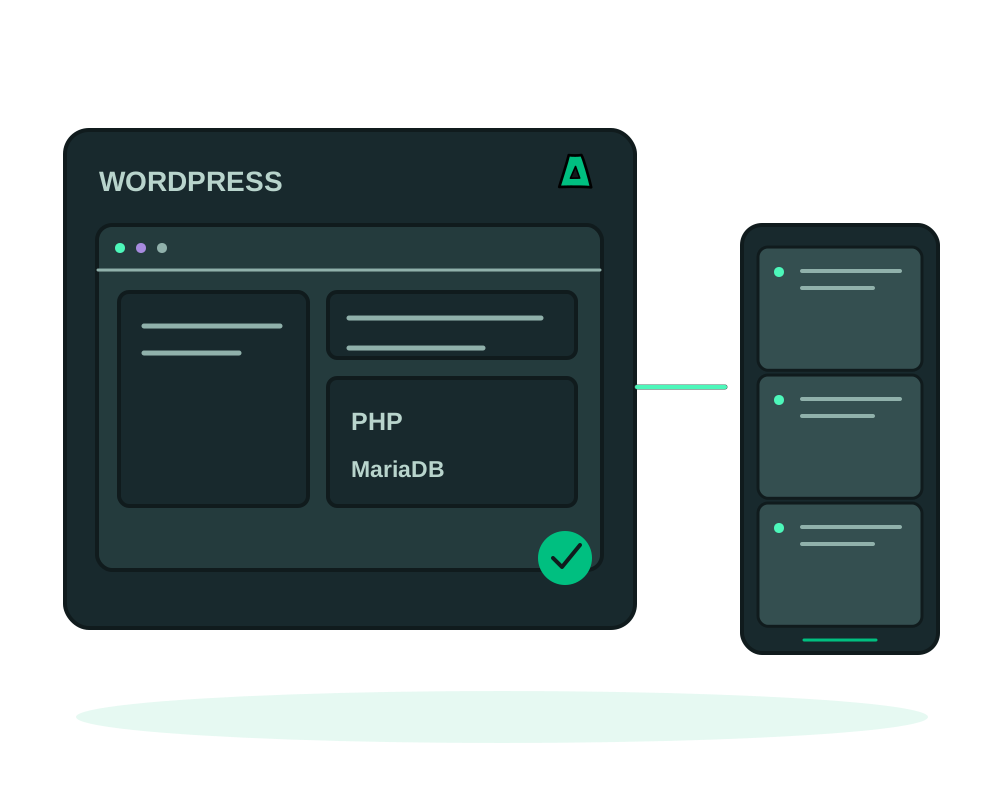
WordPress on shared hosting means a control panel, a shared PHP pool and someone else’s rules. WordPress from the Impreza catalog is different: it runs in Docker on a VPS that is yours, with its own database, a certificate issued for you, and the option of a .onion mirror. This guide walks through the install and the three settings worth getting right.
What you get
- The official WordPress image with Apache and PHP 8.3, plus a bundled MariaDB 11 that only WordPress can reach
- Automatic HTTPS on your own domain or on a free imprezaapps.com subdomain
- A generated admin password, shown once in My Apps, and an admin user that is not called admin
- An optional Tor mirror for the same site, in the same install
What you need
A VPS with the Impreza agent on it. The fastest path is to order an offshore VPS and pick WordPress in the install picker at checkout: the server comes up with the agent and WordPress already installing. If you already have a server, the agent needs about 1 GB of RAM and 5 GB of disk free for this app.
Install it
Open My Apps and pick WordPress
Sign in to the client portal, open My Apps, and choose WordPress from the Marketplace. Pick the server it should run on.
Choose the hostname
Leave the domain empty and you get wordpress-xxxxxx.imprezaapps.com with DNS already live. Or type a domain you own; then create an A record pointing that hostname at your VPS IP before you install, so the certificate can be issued. WordPress stores its URL in the database, so pick the hostname you intend to keep.
Set the admin details, or accept the defaults
The admin user defaults to imprezaadmin, the admin email to admin@your-domain, and the site title to a placeholder you can rename later. The admin password is generated for you. Click install; the agent pulls the images, creates the database and runs the WordPress installer itself.
Get your credentials and log in
When the status turns to running, click Show credentials on the app card. Open https://your-domain/wp-admin, sign in, and change the admin email to one you control if you left the default. On an imprezaapps.com hostname, the default app address is not a working inbox or authorized mail sender. Configure WordPress SMTP and a sender on your own domain before relying on notifications or password resets. Follow app email setup.
Optional: add a Tor mirror
On the app card, choose Add onion. The agent publishes a v3 .onion address for the same site next to the clearnet one. See how to publish a Tor .onion site.
Bots try admin first on every WordPress they find. The default imprezaadmin exists for that reason. Keep a name of your own, use the generated password or a longer one, and turn on two-factor authentication in wp-admin.
With the Impreza MCP connected, ask your assistant to deploy wordpress from the catalog on your server, with a domain and, if you want, onion: true. It calls impreza_deploy_catalog_app and reports the URL and credentials back. See how to deploy a server with your AI agent.
Before changing WordPress, themes or plugins, protect both the site files and the MariaDB database. The integrated app backup flow copies covered deployment data to your account’s Impreza S3 storage. A running database volume is not a substitute for a consistent database backup; use the database’s supported procedure as well and test recovery.
For a move, prepare a compatible WordPress destination and follow the migration guide. Check the site URL, database access, media, permalinks and sign-in before switching traffic. A whole-VPS restore is a separate operation that can affect other apps on the server.
Inspect WordPress before making changes
For a supported catalog deployment, use the app inspection and maintenance guide to discover WP-CLI and collect a plugin inventory before planning an update. Integrated CLI runs require a running app and manage permission, including commands that only list information. Review the completed result and test the site after an approved change.
If scheduled posts, WP-Cron or Site Health loopback checks fail, inspect the Agent version before adding another timer. Agents 0.6.21–0.6.24 could block WordPress’s requests to its own public hostname through the proxy. Agent 0.6.25 corrects that path for published ports and respects the host firewall’s decisions. Update existing agents explicitly and review the connection rules. Then check the WordPress cron configuration before adding a platform task. Avoid duplicate timers. An HTTP response alone does not prove the intended WordPress job completed.
When another assistant investigates the site, use delegated app access with the permissions, lifetime and resource limits appropriate to that task.
Start now
Get an offshore VPS with WordPress preselected, or read the platform reference at docs.imprezahost.com. For any other catalog app, see how to deploy an app in one click.