



































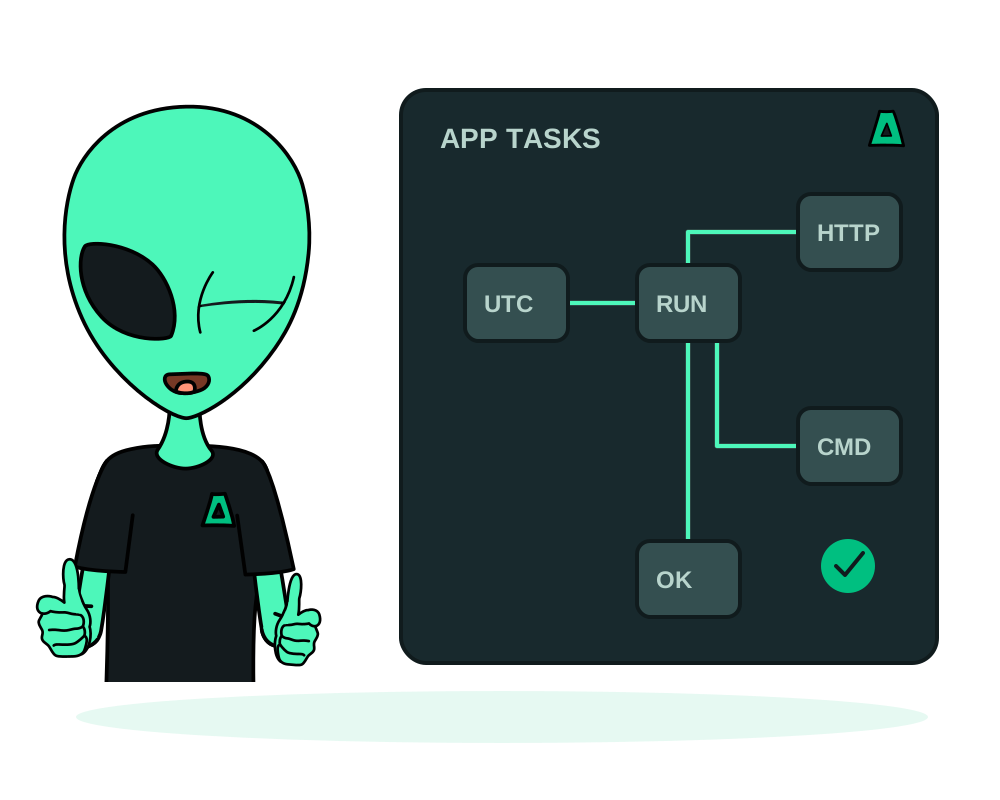
Some apps need recurring work even when nobody visits their public page. Impreza can schedule a request to an app endpoint or a command in a separate container on the app network, then record the run’s status and captured output.
This guide covers scheduled app tasks. App backup policies and n8n workflows are separate features with their own configuration.
Check the app and existing tasks
Identify the deployment and use impreza_list_tasks to see what is already configured. Check whether the application already has a worker or scheduler performing the same job.
Scheduled execution requires the app to be running and its agent able to execute the job. Configuring and manually running a task require deploy permission; reading task history requires read. Deleting a task requires manage.
Choose HTTP or command execution
HTTP tasks request a path on the app itself using GET or POST. The request uses the app’s internal address, so a public hostname is not required. It is not an arbitrary external URL monitor. Check that the endpoint accepts this request and performs the intended work.
Command tasks run a single-line shell command in the container image you specify, on the app network. They do not run inside the app container and do not automatically mount its persistent files. An app file path is therefore not enough to make a maintenance command work in a task container. Choose an image containing the needed runtime and design the job for that environment.
Choose a supported cadence
The available schedules are every 5, 15 or 30 minutes, hourly, daily and weekly. The API accepts every_5m, every_15m, every_30m, hourly, daily or weekly; it does not accept an arbitrary cron expression.
Daily and weekly schedules can specify an hour from 0 to 23 in UTC. Weekly schedules also use a weekday from 0 for Sunday through 6 for Saturday. Convert your intended local time to UTC and check it when your local offset changes. These are scheduler cadences, not a guarantee of execution at an exact second.
Create a paused task and test it
Use impreza_schedule_task without a task ID to create a task. For a WordPress deployment whose /wp-cron.php endpoint is appropriate for the intended job, an example is:
{
  "deployment_id": "dpl_REPLACE_ME",
  "name": "WordPress background jobs",
  "kind": "http",
  "http_path": "/wp-cron.php",
  "http_method": "GET",
  "schedule": "every_5m",
  "enabled": false,
  "keep_runs": 10
}
Replace the deployment ID and review WordPress’s existing cron configuration first. This is a proposed task configuration, not a change already applied to your site.
Run the saved task once with impreza_run_task, using its task ID. The manual run can test a paused task. Then call impreza_list_tasks with that task ID to read the run history, output and exit code.
HTTP 2xx and 3xx responses count as successful at the task layer. A redirect or an application error inside an HTTP 200 response can still mean the intended work did not happen. Inspect the output and the application’s own state before enabling the schedule. Command tasks report the command’s exit code; that also needs to be interpreted against the job’s expected result.
Enable, monitor and pause
After a successful test, call impreza_schedule_task with the task ID and enabled: true. Editing an existing task preserves fields you omit.
Review the next scheduled result. The scheduler skips a task that already has a pending or running execution; it does not intentionally start another copy of that same task. Different tasks can still overlap, so avoid configuring duplicate jobs.
Captured output is size-limited. History retention is configurable from 1 to 200 runs, with a default of 10; the current history response returns up to the latest 50. Save necessary diagnostic findings separately without copying secrets.
Pause with enabled: false when investigating a problem. Deleting with impreza_delete_task also removes its run history. Pausing prevents future scheduled runs; do not use it as a promise to cancel work already dispatched.
Is an HTTP call to Nextcloud cron.php the same as native cron?
No. Nextcloud distinguishes webcron from native cron and recommends native cron for larger or more demanding instances. Calling /cron.php over HTTP has webcron’s application-level limits; adding a five-minute timer does not make it native cron. Review the Nextcloud background-job documentation for your version and validate the correct setup for your workload.
For diagnostics before changing a timer, use the app inspection guide. For recurring recovery points, consult app backup and restore rather than treating an arbitrary maintenance task as a backup policy.