Whether Offshore or Surface, we have it all, a lot of Server
options for various types of use!

















Main sales at Impreza Host,
get the solution that works for you


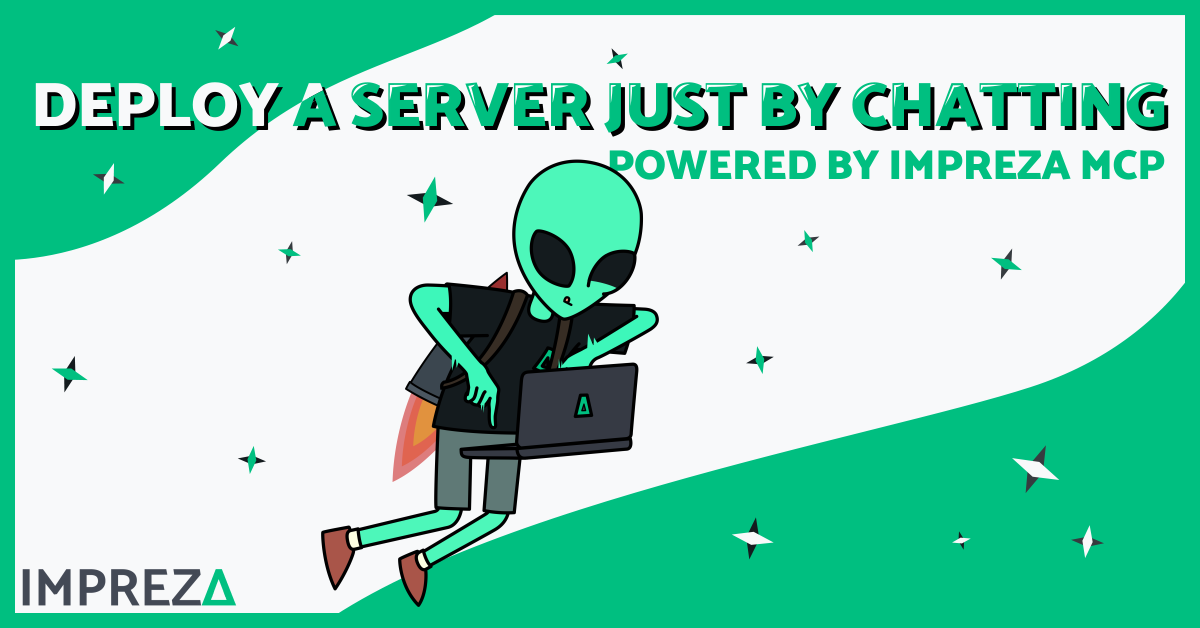
The Impreza MCP connects your AI assistant directly to your hosting. Once it is set up, you can create servers, deploy apps, manage domains, and top up your balance without leaving the chat. It works with the coding assistants people already use every day, including Claude, Cursor, Zed and Codex.
MCP stands for Model Context Protocol. In plain terms, it is a standard way for an AI assistant to use real tools. The Impreza MCP gives your assistant a set of tools for running infrastructure, so a sentence like “deploy this project to a new offshore VPS” turns into an actual server with your app on it.
There’s two was to connect, pick the path that fits how you work.
The remote option uses an OAuth connector. You authorize it once, and your assistant can talk to Impreza right away. Nothing to install, nothing to keep updated. This is the fastest way to get going and a good fit if you want the agent available without touching your machine.
If you live in a coding assistant, the local server is for you. You add impreza-mcp to your tool of choice and it runs alongside your editor. This path is handy when you want the agent close to your codebase, deploying the repo you are working on.
Setup is a single command. Copy it into your assistant and it wires everything up:
npx -y impreza-mcp setup --tool claude-codeSwap the tool name for the one you use, such as cursor, continue, zed or codex-cli. The documentation lists the exact value for each.

After setup, your assistant can handle the day to day of running infrastructure:
Once connected, try something small to see it work. Ask your assistant to list your services, then to deploy a simple catalog app. From there, point it at a real repository and let it handle the build, the deploy, and the HTTPS certificate for you.
Full instructions for both the remote connector and the local server are in our docs, including the exact command for each assistant. Start at docs.imprezahost.com, connect your assistant, and run your first deploy in minutes. When you are ready for production, pair it with an Offshore VPS and a Private Domain.
Top-Up your Hosting with Crypto by just Chatting with your AI agent now with no KYC! Take a look on how to do so.